
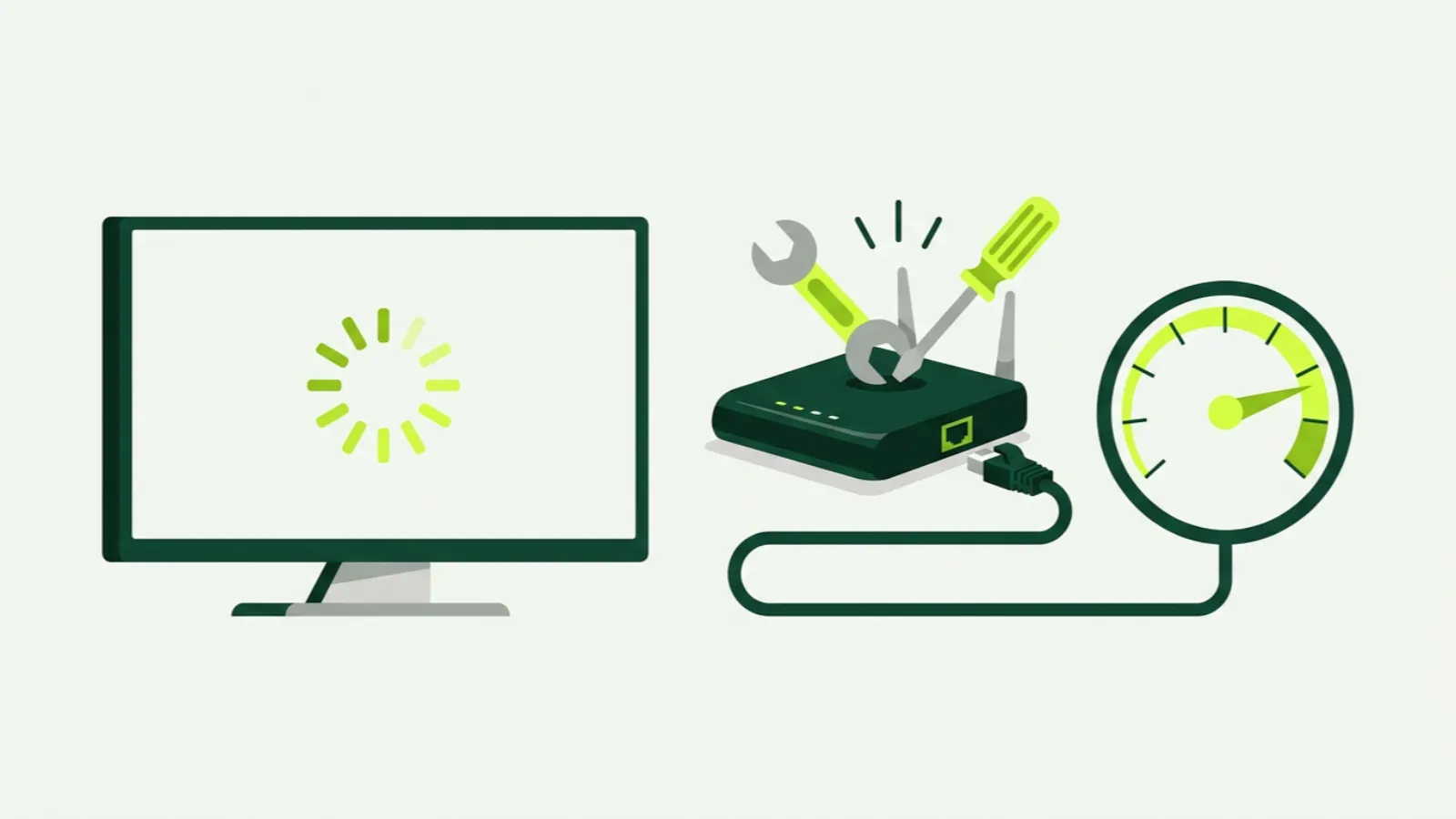
IPTV buffering almost always has a boring cause. The stream is a steady flow of video data from a server to your TV, and anything that interrupts that flow, from a microwave near the router to a busy server, shows up as a spinning circle at the worst possible moment.
The trick to fixing IPTV buffering is to check things in order, cheapest and most likely first, and to change one thing at a time so you know what worked. This guide follows that order. If you are still choosing a provider and want to see how a service behaves before paying, our 36-hour free trial is a good way to test your own network against real streams.
Quick diagnosis: what is your buffering telling you?
Before you start changing settings, match what you see to the likely cause.
| Symptom | Most likely cause | Jump to |
|---|---|---|
| Buffers on every channel, all the time | Weak Wi-Fi or slow connection to the device | Steps 1–3 |
| Fine in the morning, freezes in the evening | Network or ISP congestion at peak hours | Steps 1 and 8 |
| One channel buffers, others are fine | That stream’s source | Step 10 |
| Started after an app update | App settings or corrupted cache | Steps 5 and 9 |
| Firestick slow everywhere, menus lag too | Device storage or overheating | Step 9 |
| Picture plays then stops every few seconds | Buffer size or stream format | Step 5 |
| Channels won’t load at all, just errors | DNS, login or server address | Steps 6 and 10 |
Step 1: Run a speed test at prime time
Test from the device that buffers, or from a phone standing right next to it, between about 7 and 10 p.m. when everyone in your area is online. A morning test on your laptop beside the router tells you almost nothing about the TV in the basement at 8 p.m.
As a guide, plan on about 15 Mbps for an SD stream, 25 Mbps for HD and 50 Mbps for 4K, per screen that is playing at the same time. If your result at the TV is below those numbers, keep going through steps 2 to 4 before you look anywhere else.
Many Fire TV and Android TV devices have a network check in their settings menus, and most have a browser that can open a speed test site.
Step 2: Use a cable, or at least 5 GHz Wi-Fi
A wired Ethernet connection is the single most reliable fix for IPTV buffering. If your TV or box has an Ethernet port and the router is within reach, use it. For a Firestick, an Ethernet adapter that plugs into the stick’s power line does the same job.
If a cable is not possible, connect to your router’s 5 GHz network rather than 2.4 GHz. They often appear as two network names, sometimes with “5G” in one of them.
- 5 GHz is faster and less crowded, but loses strength through walls and floors.
- 2.4 GHz reaches further, but is shared with neighbours’ networks, cordless phones, baby monitors and microwaves, so it slows down sharply in apartments and condos.
In a Toronto or Montreal apartment building, you may see dozens of 2.4 GHz networks overlapping. That alone can explain a lot of evening buffering.
Step 3: Move the router, not just the TV
Wi-Fi signals hate distance, concrete, metal and water. Routers tucked inside a TV cabinet, behind a fridge or in a basement corner lose much of their range before the signal leaves the room.
Try these before buying anything:
- Put the router up high and in the open, ideally central to the rooms where you watch.
- Keep it away from microwaves, aquariums, mirrors and metal shelving.
- If the TV is two floors away, a mesh system or a wired access point near the TV usually works better than a plug-in range extender, which can halve the speed it passes on.
Step 4: Restart everything, in this order
Restarting clears memory leaks, stuck connections and the odd router that has been running for 200 days straight. The order matters, because each device needs the one before it to be ready.
- Close the IPTV app completely.
- Unplug the modem and router (or the combined box from Bell, Rogers, Telus, Videotron or your ISP) for 30 seconds.
- Plug the modem back in and wait until its lights settle, usually a couple of minutes.
- Restart the router if it is a separate box, and wait again.
- Restart the TV or streaming device. On a Firestick, unplugging it from power is more thorough than the menu restart.
- Open the app and test the same channel that was buffering.
Step 5: Adjust the app settings
IPTV player apps hide a few settings that make a real difference. Names vary between apps, but look for these.
Buffer size
A larger buffer stores more seconds of video ahead of what you are watching, which smooths over brief drops. If your app offers small, medium and large, try medium or large. The trade-off is a slightly longer wait when you change channel.
Hardware vs software decoder
The decoder turns the stream into a picture. Hardware decoding uses the device’s video chip and is usually smoother and cooler. Software decoding uses the main processor and can handle odd streams the chip struggles with. If a channel stutters, freezes on green frames or plays audio without video, switch the decoder and test again. Some apps offer a third “hardware plus” mode worth trying too.
Stream format: TS vs HLS
Many apps let you choose between MPEG-TS (often shown as “TS”) and HLS (sometimes “.m3u8”). TS is a continuous stream and usually starts faster. HLS sends video in short chunks, which can cope better with an unsteady connection. If one format buffers, try the other. There is no universal winner; it depends on your network and device.
Step 6: Change your DNS
DNS is the internet’s address book, and your ISP’s default one can be slow or unreliable. A slow DNS lookup mostly shows up as channels that take a long time to start, or that fail to load, rather than mid-stream buffering.
You can change DNS on your router (which covers every device in the house) or on the device itself in its network settings. Well-known public DNS services are free and easy to find. Write down your original settings first so you can switch back.
Step 7: Check for other traffic on your network
A cloud backup, a game console downloading a 100 GB update or someone uploading videos can quietly eat most of your bandwidth. Pause big downloads during games. Some routers have a quality-of-service setting that lets you give priority to the TV; if yours does, it is worth turning on.
Step 8: ISP throttling, and when a VPN helps
Some ISPs manage traffic at busy times, and video streams can be slowed as a result. The tell-tale pattern: your general speed test looks fine, but IPTV streams in particular struggle at the same hours every evening, and the problem disappears late at night.
A VPN encrypts your traffic so the ISP cannot see what kind of traffic it is. If throttling was the issue, a VPN can restore normal speed. But a VPN also adds a detour, so it can make things worse if throttling was not the problem. Treat it as a test, not a default:
- Try the same channel at the same hour with and without the VPN.
- Pick a VPN server in Canada, close to you, rather than one abroad.
- If there is no clear improvement, turn it off.
Step 9: Clear storage and cache on a Firestick
Fire TV Sticks have limited storage, and when it fills up the whole device slows down, menus included. Streaming apps also build up cache files that can become corrupted after updates.
- Go to the Fire TV settings, open the Applications section and choose to manage installed applications.
- Select your IPTV app and clear cache first. That keeps your login.
- If problems continue, clear data. This resets the app, so you will need to enter your server URL, username and password again.
- Uninstall apps you no longer use, especially games, to free storage.
- Check the stick is not overheating. If it sits behind the TV with no airflow, an HDMI extender cable that moves it a few centimetres away can help.
If you are setting up a stick from scratch, our full Firestick installation walkthrough and the shorter Firestick setup guide cover a clean install. For other devices, see the Android TV guide or the smart TV guide.
Step 10: When the buffering is the provider’s fault
If you have a good connection at the TV, the right app settings and a healthy device, and specific channels still freeze, the problem may be upstream. Signs that it is the provider rather than you:
- Only certain channels buffer, and the same channels buffer on several devices.
- Buffering starts at the same moment on every screen in the house.
- Other video services play perfectly at the same time.
With IP2TV, email support at [email protected] with the channel name, the time it happened, your device and your speed test result at the TV. That detail lets us check the right stream instead of guessing. If the channel appears more than once in your lineup, for example in HD and SD, try the other version to get through the game while we look.
Our FAQ covers account questions, and if you watch mainly hockey, the guide to watching the NHL without cable in Canada has tips specific to game nights.
Your buffering checklist
Work down this list and stop when the problem goes away:
- Speed test at the TV, during the evening.
- Ethernet, or 5 GHz Wi-Fi.
- Router up high, central and in the open.
- Restart modem, router and device, in that order.
- Bigger buffer, switch decoder, try TS or HLS.
- Try a different DNS.
- Pause big downloads on the network.
- Test a VPN only if evening throttling is suspected.
- Clear the app cache and free device storage.
- Report specific channels to the provider with details.
No setup can promise that a stream will never pause, but this order fixes the large majority of cases without spending money. If you are comparing providers on reliability, run the free trial on the same nights you would watch, then pick a plan from the pricing page once you are happy with how it plays in your home.
